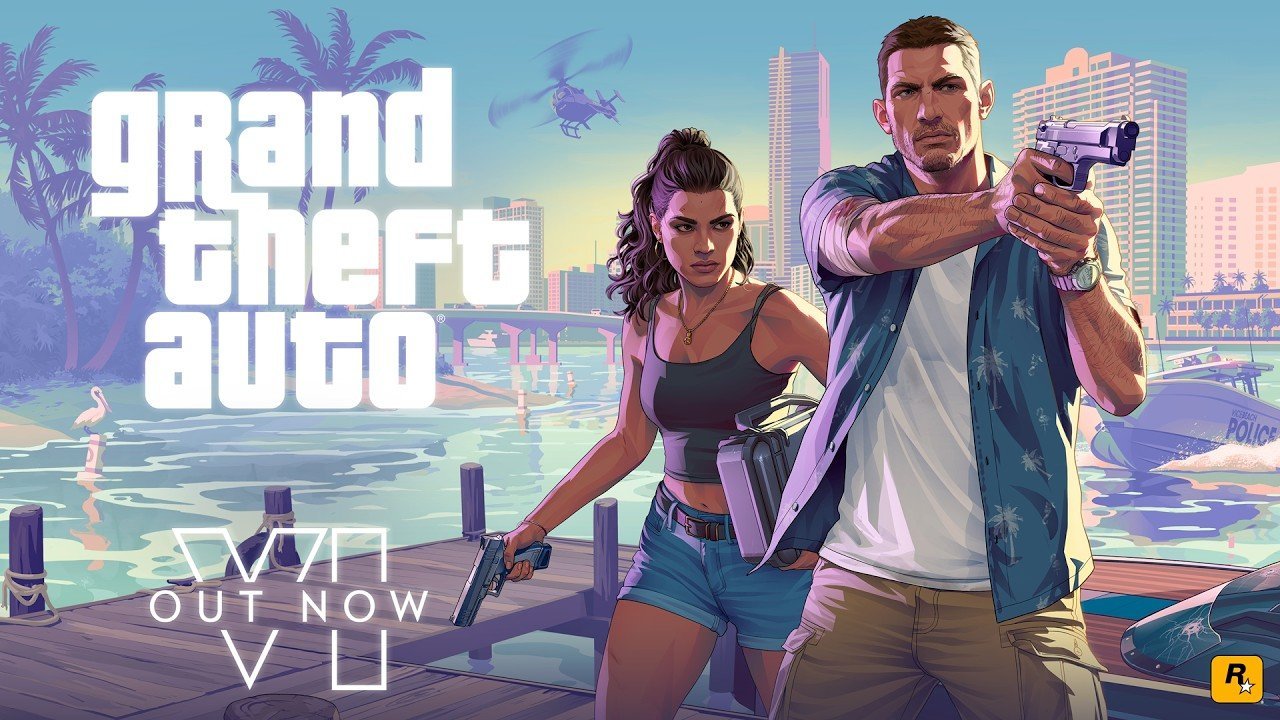
Grand Theft Auto VI is finally out, and one question keeps popping up. Can you play GTA 6 on Meta Quest? The short answer is yes, but not in VR. There’s no VR mode and no Quest version. What you can do is stream it from your own console onto a giant virtual screen in your headset. Here’s how each method works, what you need, and the catches.
GTA 6 isn’t sold on the Meta Store, so my VRCGUY code doesn’t apply to it. The code is only for paid games bought on the Meta Store. If you’re after one of those, here’s how my VRCGUY promo code works.
Is there a VR version of GTA 6?
No. GTA 6 launched on 19 November 2026 for PlayStation 5 and Xbox Series X|S. It’s a flat game, and Rockstar hasn’t announced a VR mode or a PC version.
I haven’t tested any of these methods with GTA 6 myself. So this is a guide based on official instructions from Meta, Microsoft, Sony and Rockstar, plus reporting from VR.org.
Rockstar’s 10 November Newswire post gives two key details. First, the game targets 30 frames per second on consoles. Second, it says GTA 6 ‘will also fully support Remote Play on PlayStation and XBOX’. That second line is what makes the Xbox route possible.
Can you stream GTA 6 to a Quest with Xbox Cloud Gaming?
Not at the moment. This is where a lot of people get caught out. Microsoft’s Xbox Wire post says GTA 6 is playable through Xbox Cloud Gaming on Xbox One and Xbox Series X|S consoles. Quest isn’t mentioned. The post also says the game must be bought separately.
VR.org confirmed after launch that cloud streaming of GTA 6 is console-only for now. So you can’t open the Xbox app on your Quest and stream it from the cloud without a console. That could change later, but nobody has said it will.
Method 1: Xbox Remote Play on Quest
If you own an Xbox Series X or Series S, this is the easiest Quest route. Your console runs the game at home. Then the picture streams over your Wi-Fi to the free Xbox app on the Meta Quest store.
What you need
- An Xbox Series X or Series S with GTA 6 installed.
- A Quest 2, Quest Pro, Quest 3 or Quest 3S.
- A compatible gamepad paired with the headset. Meta lists the Xbox Wireless Controller, the DualShock 4 and the Switch Pro Controller among others.
- Remote features switched on in your Xbox settings.
- A good home network. Xbox recommends 5GHz Wi-Fi and at least 10Mbps download speed.
How to set it up
These steps come from Meta’s Xbox help page and Xbox’s Remote Play page.
- On your Xbox, enable remote features in the settings. VR.org also suggests using Sleep power mode, so the console can wake when you connect.
- Install the free Xbox app from the Meta Horizon Store. Your headset needs software build 60.0 or later.
- Open the app and pair your controller when asked.
- Sign in with the same Microsoft account that’s on your console.
- Select your profile picture in the top right, press My consoles, then press CONNECT.
- Launch GTA 6 from your Xbox dashboard, which now appears on the virtual screen.
One small caveat. The Xbox app’s store listing says you can play ‘select games installed on your console’ with Remote Play. Rockstar says GTA 6 fully supports Remote Play on Xbox, but it doesn’t mention headsets by name.
Method 2: PS5 and Meta’s HDMI Link
PlayStation owners can’t use the Xbox app, of course. Instead, there’s a cable option. Meta’s free HDMI Link app shows anything with an HDMI output in a window inside your headset. Meta describes it as near-zero latency.
What you need
- A PS5 with GTA 6.
- An HDMI cable.
- A USB capture card that supports UVC and UAC and 1080p capture. Meta recommends USB 3.0 cards.
- A USB cable from the capture card to the headset.
How to set it up
The basic steps come from Meta’s HDMI Link help page. Plug the PS5 into the capture card with HDMI. Next, connect the capture card to your Quest by USB, grant the permissions, and open HDMI Link. You can then switch to theater view, which makes the screen bigger and dims your surroundings.
There’s one important gotcha. Meta says capture cards won’t show a picture if HDCP copy protection is on. VR.org’s guide says to turn it off in the PS5’s HDMI settings first. Remember to switch it back on afterwards, because streaming apps rely on it.
If the picture stutters, Meta’s tip is to check the app’s stats say SuperSpeed. If not, try flipping the USB-C plug or using a better cable. I covered a similar cable setup for PCs in my Mixed Reality Link USB guide.
Method 3: PS VR2 Cinematic Mode
If you already own a PS VR2, you don’t need a Quest at all. Sony’s Cinematic Mode shows any non-VR PS5 game on a virtual screen in the headset. You just start the game and it appears. You can change the screen size in the PS VR2 settings.
The catch is that your TV goes blank, because Sony disables the social screen in Cinematic Mode. And if you don’t own one yet, the PS VR2’s future is a bit uncertain, so I wouldn’t buy one just for this.
What to expect: picture, lag and comfort
Let’s be realistic. This is a flat game on a big floating screen, not VR. It’s handy if someone else wants the TV, or if you like a huge screen. But it won’t feel like you’re in Leonida.
Picture quality is the first limit. VR.org notes that the headset routes top out at 1080p, so a PS5 Pro’s sharper image mostly disappears. Remote Play also compresses the picture over Wi-Fi.
Lag is the second. VR.org reports Digital Foundry measured about 180ms of input lag on a Series X, even before streaming. Remote Play adds a trip across your network. Cable routes like HDMI Link and Cinematic Mode avoid that extra step.
Finally, think about comfort and battery. GTA sessions can run for hours, and Quest batteries don’t. A charging cable or battery strap helps. VR.org also suggests turning motion blur down for a big screen. Meanwhile, Meta’s new Theater environment, which started rolling out with Horizon OS 2.10, shows Meta is leaning into big-screen viewing, although it’s mainly pitched at films.
Which method should you pick?
- Xbox owner with a Quest: use Remote Play through the Xbox app. It’s free.
- PS5 owner with a Quest: HDMI Link works, but you’ll need a capture card.
- PS5 owner with a PS VR2: Cinematic Mode is the simplest option, with no extra kit.
- No console: you can’t play GTA 6 on a Quest right now.
Is it worth buying a headset just for GTA 6? Honestly, no. But if you’ve already got a Quest for games and films, it’s a fun extra. If you’re thinking of getting one anyway, the Quest 3S Black Friday UK deal runs until 30 November. And for proper VR games with a similar big-budget feel, see my guide to AAA games on Meta Quest 3.
Quick answers
Can I play GTA 6 on Meta Quest 3 without a console?
No. Xbox Cloud Gaming streams GTA 6 only to Xbox consoles at launch, so you need your own Xbox or PS5.
Does GTA 6 have a VR mode?
No. Rockstar hasn’t announced one. On a Quest, you see a flat virtual screen.
Does it work on Quest 2?
Meta’s Xbox help page lists Quest 2, Quest Pro, Quest 3 and Quest 3S for the Xbox app. HDMI Link also supports all four.
For more headset guides, visit my Meta Quest hub. I’ll update this if Microsoft adds Quest to GTA 6’s cloud streaming.
Sources
- Rockstar Newswire: Pre-Load Grand Theft Auto VI Now (10 November 2026)
- Xbox Wire: Grand Theft Auto VI Comes to Xbox One and Xbox Series X|S Through Xbox Cloud Gaming (10 November 2026)
- Meta Quest Help: Learn about Xbox Cloud Gaming on Meta Quest
- Meta Horizon Store: Xbox app
- Xbox: Remote Play
- Meta Quest Help: Using the Meta Quest HDMI Link app
- Meta Horizon Store: Meta Quest HDMI Link
- PlayStation Support: How to play non-PS VR2 games on PS VR2 (Cinematic Mode)
- VR.org: GTA 6 Has No VR Mode. Here Is How to Put It on a Virtual Big Screen (18 November 2026)
- VR.org: GTA 6 Cloud Gaming Is Console-Only at Launch (19 November 2026)