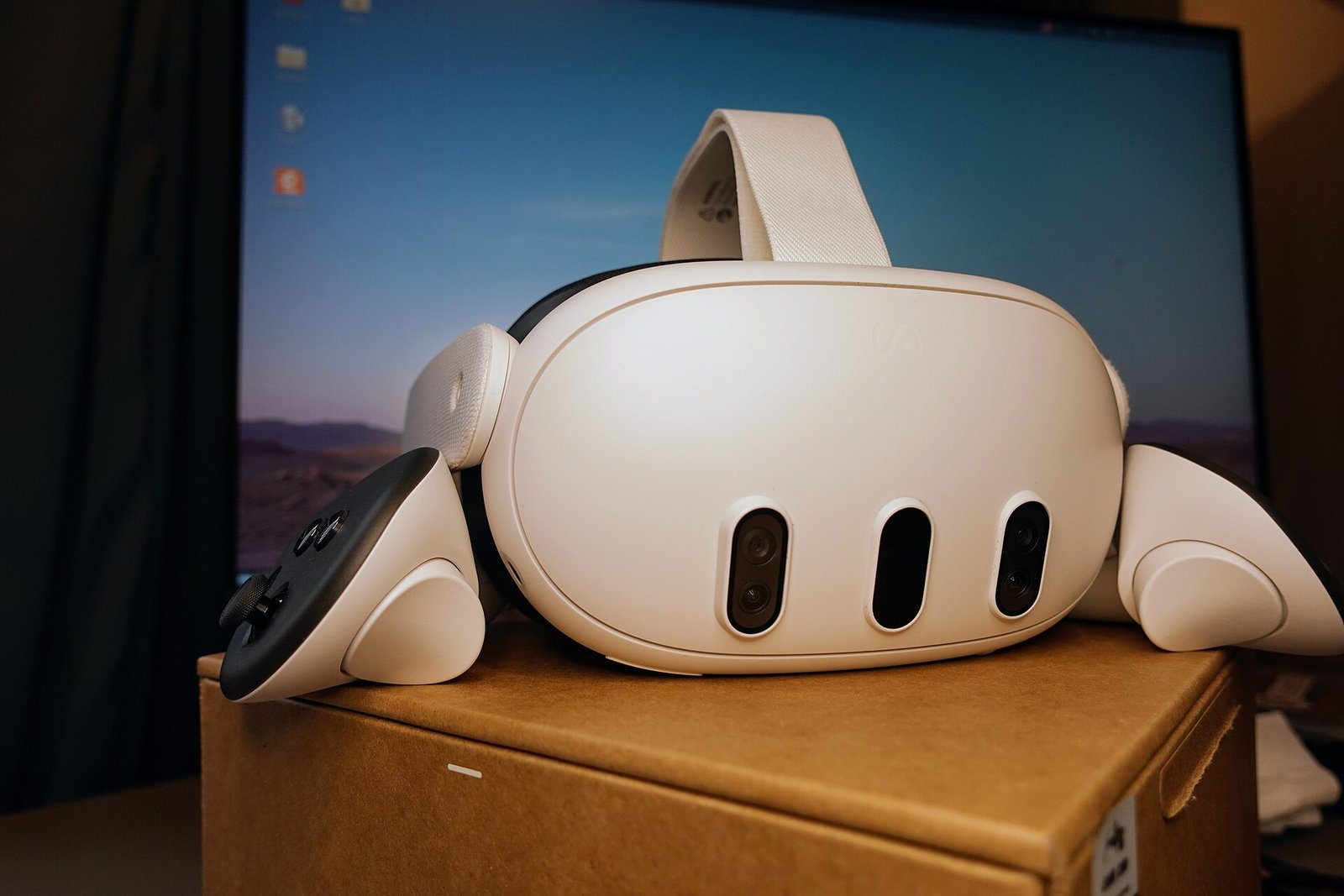
Mixed Reality Link USB support is finally here, and it fixes the biggest headache with using your Windows PC inside a Quest. Until now, Microsoft’s app streamed your desktop to a Quest 3 or 3S over Wi-Fi only. If your Wi-Fi was rubbish, so was the picture. Now you can plug in a cable instead. Here’s what Microsoft has announced, what you need, how to set it up, and what it doesn’t do.
What is Mixed Reality Link?
Mixed Reality Link is Microsoft’s free app for streaming a Windows 11 PC to a Meta Quest 3 or Quest 3S. Once connected, your desktop appears as big virtual monitors floating in front of you. The Microsoft support page calls it “a private, high-quality, multiple-monitor workstation”.
It’s aimed at work rather than games. Think spreadsheets, emails and video calls on a massive screen. It isn’t the same thing as Quest Link or Steam Link, which are built for PC VR games. I’ll come back to that, because it’s the bit most likely to confuse people.
Mixed Reality Link USB: what’s new
Microsoft announced the wired option in a blog post on 5 November. In its words, the app “now lets you stream your Windows desktop to your headset over USB”. Windows Report covered it on 9 November, and the headset side is still rolling out this week. There are three practical benefits:
- No Wi-Fi needed. Microsoft says USB helps when coverage is poor, the network is busy, or public Wi-Fi stops devices talking to each other.
- Works offline. Once it’s set up, Microsoft says you can use your PC in mixed reality even without internet access.
- Easier pairing. Over USB there’s no QR code to scan or PIN to type the first time you connect.
That second point is handy for travel. Hotel and train Wi-Fi often blocks devices from seeing each other, which is exactly what a wireless setup needs. A cable gets round that completely.
What you need
According to Microsoft’s announcement and support page, the shopping list is short:
- A Windows 11 PC running version 22H2 or newer.
- Mixed Reality Link version 26.10120.9280.1 or newer on the PC.
- A Meta Quest 3 or Quest 3S.
- A USB data cable rated USB 2.0 or faster, with USB-C on the headset end.
- A USB 2.0 port at minimum. Microsoft recommends USB 3.x at 5 Gbps or faster.
The cable is where people will trip up. Microsoft says charge-only cables aren’t supported. Plenty of USB-C cables only charge, so if nothing happens, try a different cable first.
The PC itself doesn’t need to be a beast. Microsoft lists Intel 8th-generation chips with UHD 620 graphics as the minimum, along with AMD Ryzen 3000 APUs, GTX 900-series cards and Snapdragon X laptops. That’s a much lower bar than PC VR gaming.
How to set it up
Microsoft gives four steps once the feature reaches your headset:
- Install or update Mixed Reality Link on your PC from the Microsoft Store.
- On your Quest, go to Settings, then Link, and turn on “USB connection for apps”.
- Plug the headset into your PC with a USB data cable.
- Open Virtual Display on the headset and follow the prompts to pair, or reconnect to a PC you’ve paired before.
Don’t panic if the option isn’t there yet. Microsoft says Meta is rolling out USB support “over the next week”, counting from 5 November. So your headset might not have it, even with the newest app on your PC. Give it a few days and check for a Quest system update.
Why does the setting live under Link?
The “USB connection for apps” switch isn’t brand new. UploadVR explained in September that Horizon OS 2.5 and later can turn the USB port into a network link to your PC. Apps have to ask, and you have to approve it. Virtual Desktop used it first, and then Steam Link added wired streaming in a public beta. Mixed Reality Link is the latest app to plug into the same system.
Is this the same as Quest Link or Steam Link?
No, and this is worth getting straight. There are now several ways to plug a Quest into a PC, and they do different jobs:
- Mixed Reality Link: streams your Windows desktop as virtual monitors. It’s for work, browsing and films on your PC.
- Quest Link: Meta’s own way to play PC VR games on a Quest, by cable or wirelessly.
- Steam Link: Valve’s app for streaming SteamVR games. I covered its latest picture upgrades in my SteamVR 2.19.1 beta guide.
So if you want to play PC VR games over a cable, this update won’t change anything for you. However, if you want a huge Windows desktop while you’re on the sofa or away from home, it’s a welcome fix.
Why some sites said it had no USB
You might have seen claims that Mixed Reality Link doesn’t support USB at all. There’s a simple reason for the mix-up. Microsoft’s November release notes, published on 2 November, were all about reliability. They covered faster connections, smoother pairing and steadier audio, with no mention of USB.
The USB news came three days later, in a separate post. Anyone who only read the release notes would have missed it. Microsoft says that November update was its 18th release of the app this year, so it’s moving quickly.
Known issues and caveats
A few things are worth knowing before you dive in. First, Microsoft’s support page lists a known error for some NVIDIA RTX 50-series owners. With driver 616.56, you may see “There was an issue updating your display”. Microsoft says updating to NVIDIA driver 616.86 or later fixes it.
Second, the Quest 3 and 3S each have one USB-C port. If you use a battery strap that plugs into it, you’ll need to unplug that to connect the PC cable. Microsoft’s own troubleshooting steps say the same for battery packs.
Third, it’s Quest 3 and 3S only. If you’re still on a Quest 2, it isn’t officially supported, and that headset is near the end of the road anyway. I explained what that means in my Quest 2 end of support explainer.
Is Mixed Reality Link USB worth using?
If wireless already works well for you, there’s no rush. Microsoft’s wireless guide asks for a lot: 5GHz or 6GHz Wi-Fi, a strong signal and a gigabit router. Plenty of homes don’t tick every box. If your virtual desktop looks blocky or keeps dropping, the cable is the obvious next step.
It also pairs nicely with the new Theater mode Meta is testing, which I wrote about in my Horizon OS 2.10 rundown. Between the two, the Quest is slowly becoming a more useful screen, not just a games machine.
What we still don’t know
- Exactly when the rollout reaches every headset. Microsoft only says “over the next week”.
- Whether a cable gives sharper text or lower lag than good Wi-Fi. Microsoft hasn’t published figures.
- Whether the headset charges while it’s connected this way. Microsoft doesn’t say.
Most of us bought a Quest for games, of course. If you’re buying any on the Meta Store, my promo code VRCGUY is there to use at checkout. It’s my own code and it helps keep this site going. For more guides like this, have a look at my Meta Quest hub.
Mixed Reality Link FAQ
Does Mixed Reality Link work over USB?
Yes. Microsoft added USB streaming for Quest 3 and 3S on 5 November 2026, with Meta’s headset support rolling out over the following week.
Do I need the internet to use it over USB?
Not once it’s set up, according to Microsoft.
Can I play PC VR games with it?
No. It streams your Windows desktop. For PC VR games, use Quest Link or Steam Link.
Why can’t I see the USB option?
Meta is still rolling it out. Update your headset, check the “USB connection for apps” setting under Link, and try again in a few days.
Sources
- Microsoft Community Hub: Stream your Windows PC over USB with Mixed Reality Link (5 November 2026)
- Microsoft Support: About Windows Mixed Reality Link
- Microsoft Community Hub: Mixed Reality Link November 2026 Release Notes
- Windows Report: Microsoft Adds USB Streaming to Mixed Reality Link for Meta Quest 3 and 3S
- UploadVR: Steam Link’s Latest Public Beta Adds Wired USB Support On Quest Headsets
- Featured image: Meta Quest 3 front view by Roy.wonder.cohen, Wikimedia Commons, CC BY-SA 4.0
