There’s nothing like hitting a six in VR and turning round to find nobody saw it. If you want the family, your mates or your kids to watch along, you need to cast Meta Quest 3 to a TV. It’s free, it takes about a minute once it’s set up, and there are a few ways to do it depending on what kind of telly you’ve got.
This guide shows how to cast Meta Quest 3 to a TV using every method Meta officially supports, plus the fixes for when it won’t connect. I’ve also added some tips that matter for VR cricket in particular, because a room full of spectators and a swinging bat need a bit of thought.
The quick answer
In the headset, press the Meta button on your right controller, open Quick controls, select Cast, then pick your TV from the list. If your TV isn’t listed, cast to the Meta Horizon app on your phone or to a web browser on a computer instead.
That’s it in a nutshell. The rest of this guide covers the details, because the details are usually why it doesn’t work first time.
Before you start: the three golden rules
Meta’s casting help page lists a few things that need to be right before you try. Almost every casting problem comes back to one of these:
- Same Wi-Fi network. Your headset and the screen you’re casting to must be on the same network.
- Same frequency band. If your router has 2.4GHz and 5GHz bands, put both devices on the same one. Meta recommends 5GHz or 6GHz for smoother casting.
- Same Meta account. For a phone or computer, you need to be logged into the same Meta account as the headset. You can cast from a primary or a secondary account.
It’s also worth making sure your headset is up to date. These steps work the same way on the Quest 3, the Quest 3S and older Quests too.
Method 1: cast Meta Quest 3 to a TV with Chromecast
This is the easiest option if your TV supports it. You need a TV with Google Cast (Chromecast) built in, or a Chromecast plugged into one of its HDMI ports. Many Google TV and Android TV sets have it built in.
Here are Meta’s steps:
- Switch on the TV and make sure it’s on the same Wi-Fi as your headset.
- Put on your Quest and press the Meta button on your right controller to open the Navigator.
- Select the status bar at the top of the Navigator to open Quick controls.
- Select Cast.
- Pick your TV from the list of nearby devices, then select Next and follow the prompts.
If your TV doesn’t appear, check that Chromecast is switched on in the TV’s own settings. Meta’s troubleshooting page also says to check the date and time on your Chromecast device are correct, which is an easy one to miss.
One honest warning. Meta says TVs with built-in Chromecast “may be supported, but compatibility isn’t guaranteed with all models.” So if your smart TV refuses to show up, don’t assume you’ve done something wrong. Try one of the other methods below.
Method 2: cast to your phone, then to the TV
If your TV can’t receive a cast, your phone can act as the middle man. This is also handy on its own if you just want someone sat next to you to watch on a phone.
First, cast to the phone. Your phone needs Bluetooth turned on and must be on the same Wi-Fi as the headset. Then, in the Meta Horizon app:
- Open the Meta Horizon app on your phone.
- Tap Devices.
- Select your headset, then tap Cast.
You can also start it from the headset by choosing Mobile in the Cast menu. To stop, tap the casting display on your phone, tap the X and select Stop casting. Meta notes that closing the app, or switching to a different app on your phone, will also stop the cast.
Once it’s on your phone, you can use your phone’s own screen mirroring to send it to the TV, if your phone and TV support it. That depends entirely on your phone and TV brands, so check their help pages. It works, but adding a second hop usually means a bit more delay.
Method 3: cast to a computer’s web browser
If you’ve got a laptop or PC handy, you can cast to a web page. Then, if you want it on the big screen, plug the computer into the TV with an HDMI cable.
Meta’s steps for a browser are:
- On your computer, open your browser and go to horizon.meta.com/casting. Log in with the same Meta account as your headset.
- In the headset, open Quick controls and select Cast.
- Choose Computer, then select Next to connect.
Meta’s troubleshooting page still mentions the old oculus.com/casting address, so don’t worry if you see that name elsewhere. Either way, the key is being logged into the same account in the browser.
If you already use the Meta Horizon Link app on a Windows PC, Meta’s help page also has a separate option to cast from there. You’ll need the headset connected to the Meta Horizon Link app first, then you can start casting from the app’s Devices section.
How to stop casting
From the headset, press the Meta button, open Quick controls, select Cast and then Stop casting. If you were casting to a phone, closing the Meta Horizon app does the same job.
Casting not working? Try these fixes
Here are the fixes Meta suggests, in roughly the order I’d try them:
- Check the account. The phone app or browser must be logged into the same Meta account as the headset.
- Check the network and band. Both devices on the same Wi-Fi, and ideally both on 5GHz or 6GHz rather than 2.4GHz.
- Restart everything. Restart the headset, the phone and whatever you’re casting to.
- Update. Check for software updates on all your devices.
- Restart the router. It’s the classic fix for a reason.
- Try another network. Meta says some mesh networks, guest networks, hotel, airport and work networks block casting for security reasons. Some phone hotspots do too.
If you’ve got a separate guest network at home, that one catches a lot of people out. Make sure the headset isn’t on it.
The catches: lag, battery and performance
Casting isn’t free in performance terms. Meta’s own help page says that when you cast, “battery usage may increase or in-app performance may degrade.” It also says you may have problems if you cast and record at the same time.
For a slow puzzle game, that hardly matters. For a fast VR cricket game, it might. If you’re playing a tight chase in iB Cricket or a ranked match, and you notice anything feeling off, stop casting and see if it improves. The people watching will forgive you.
There’s also a delay between what you see and what the TV shows. That’s normal, and it’s worse over a busy Wi-Fi network or when you go via a phone. It doesn’t affect your timing in the game, only what the audience sees.
VR cricket tips for casting to a TV
Casting turns a VR cricket session into a bit of a party. Here are a few things I’d think about first:
- Keep the audience out of the swing zone. People naturally creep closer to the TV. Make sure nobody is inside your boundary. My guide on space for VR cricket covers how much room you really need.
- Think about where the TV is. If the TV is right in front of where you swing, people will be looking straight at you too. It’s safer to have them off to one side.
- Use a proper bat attachment. If you play with a VR cricket bat for Quest 3 and 3S, your swing is longer than with a bare controller, so the clear space matters even more. My VR cricket bat guide explains the setup.
- Parents can keep an eye on kids. Meta’s help page says parents and guardians can watch their child’s or teen’s Quest activity in real time. My VR cricket for kids guide covers age rules and safety.
- Take turns. Casting makes “pass the headset” games great fun. My VR cricket multiplayer guide has more ideas for playing with friends.
If tracking starts acting up while you’re casting, it’s probably not the cast. Lighting and reflections are the usual culprits, and my guide to fixing tracking issues in iB Cricket goes through the common causes.
Casting vs Virtual Display: which way round?
People sometimes mix these up. Casting sends what’s in your headset out to another screen, so others can watch. Virtual Display does the opposite, bringing your computer screen into the headset. If that’s what you’re after, my post on the latest Quest Virtual Display update explains what’s new.
Cast Meta Quest 3 to TV: FAQ
Do I need a Chromecast?
No. If your TV has Google Cast built in, you can cast straight to it. If not, you can cast to the Meta Horizon app on your phone or to a computer’s web browser instead.
Can I cast to an Apple TV?
Not directly. Meta’s casting list is for Chromecast-enabled devices, and Android Authority notes that Meta’s headsets don’t support AirPlay. You can still cast to an iPhone with the Meta Horizon app.
Why can’t my headset see my TV?
Usually it’s a network issue. Check both are on the same Wi-Fi and the same band, that Chromecast is switched on in your TV settings, and that you’re not on a guest network.
Does casting slow the game down?
It can. Meta says in-app performance may degrade and battery use may increase while casting.
Can I cast from a Quest 3S?
Yes. The steps are the same on Quest 3S, Quest 3 and older Quest headsets.
Once you can cast Meta Quest 3 to a TV, it’s a great way to show people why VR cricket is so much fun. If they want a go afterwards, point them to my list of the best VR cricket games on Quest 3. And if you want something calmer to cast to the family, the Winter Shark Frenzy event in Real VR Fishing is on until 15 December. For more headset help, see my Meta Quest hub.
Buying a paid game on the Meta Store? Use my creator code at checkout on meta.com for a discount on eligible games.
VRCGUY
My link should apply the discount for you. If it doesn’t, enter VRCGUY at checkout. It’s for paid games only and won’t stack with other offers. (It’s my code, so Meta pays me a small fee.) How to use VRCGUY
Sources
- Meta Help Centre: How to cast your Meta Quest to a screen (steps for headset, phone, browser and Link app casting)
- Meta Help Centre: What to do if you can’t cast from your Meta Quest (troubleshooting, network blocks, performance note)
- Meta Help Centre: How to set up Meta Horizon Link and Air Link
- Google Chromecast Help Centre
- Android Authority: How to cast your Meta Quest 3 to a TV or PC (AirPlay note)
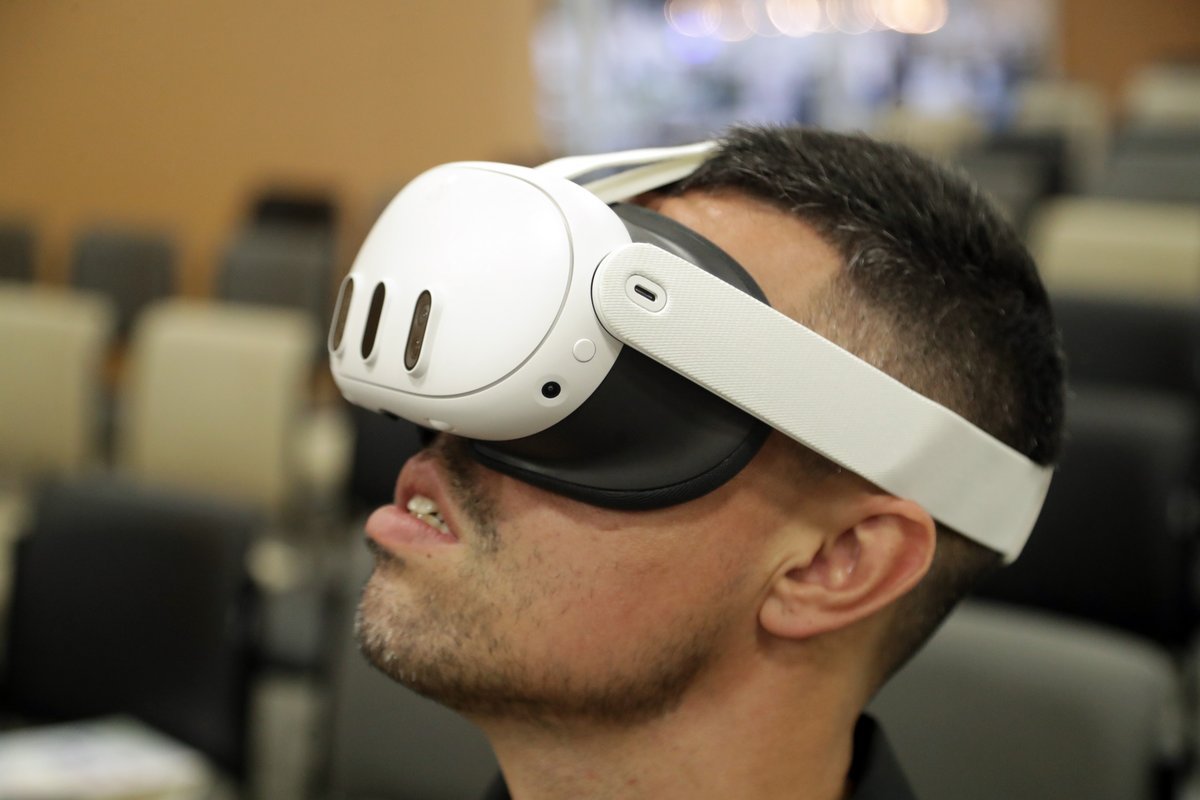
Featured image: Man wearing Oculus Meta Quest 3 by Assembleia Legislativa do Paraná, Wikimedia Commons, public domain.
