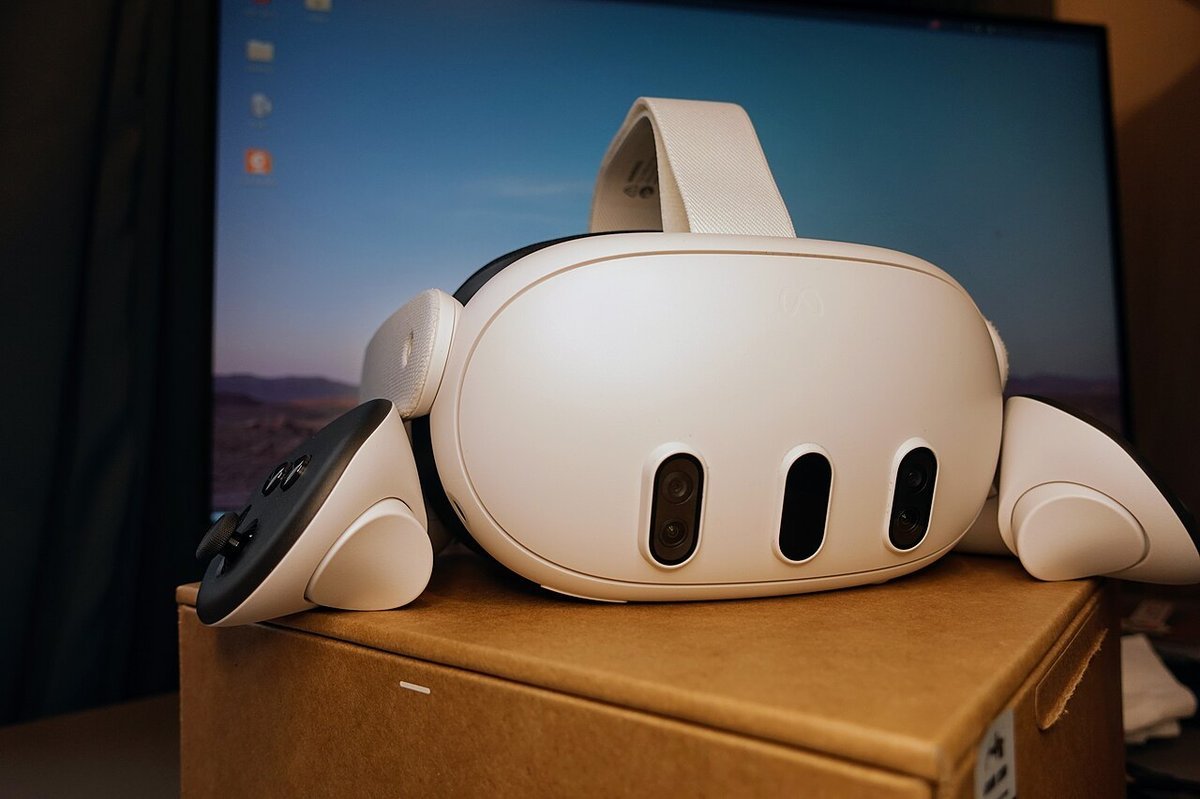
If you use your Quest as a big screen for your PC, Meta and Microsoft have quietly made it a lot more useful. The latest Quest Virtual Display update lets Windows use your headset’s microphone and cameras, adds a wired USB option, and now lets your PC’s mouse and keyboard control the headset too. I haven’t tested it myself, so this is based on Microsoft’s announcements, Meta’s help pages and UploadVR’s hands-on report from 24 November.
Here’s what’s new, what you need, and the catches.
What is Quest Virtual Display?
Virtual Display is Meta’s own app for showing your computer inside the headset. It used to be called Remote Desktop. According to UploadVR, Horizon OS 2.7 also folded the old Meta Quest HDMI Link features into it, so it’s now one app for most screen-mirroring jobs.
It works with both Windows and Mac. On a Mac or an older Windows PC, you use Meta’s Quest Virtual Display app. On Windows 11, though, the connection runs through Microsoft’s Mixed Reality Link app, and that’s where most of the new features live. Meta’s help page says you can have up to three virtual displays at once.
New feature 1: use your headset’s microphone on your PC
Mixed Reality Link has long let you hear PC audio through the headset’s speakers. Now it works the other way as well. Microsoft says your headset microphone shows up in Windows as “Mixed Reality Link Microphone”, and you can pick it like any other mic.
So if you’re on a Teams call, chatting on Discord or talking to an AI assistant, your voice can come from the headset you’re already wearing. That’s one less gadget on the desk.
New feature 2: headset cameras and your avatar as a webcam
The camera side is more interesting. Microsoft lists two new video sources in Windows:
- Mixed Reality Link Passthrough: your headset’s front cameras, so you can share what you’re looking at.
- Mixed Reality Link Avatar Camera: your Meta avatar, so you can join a call as your cartoon self instead of using a webcam.
These arrived in Mixed Reality Link version 26.9105.9070.0, back in September, so they aren’t brand new. However, they’ve had little attention until now. The avatar camera ties in with Horizon OS 2.10, which added avatar video calls in Meta’s own Chats app. UploadVR says apps like Discord and Zoom already use the same idea.
New feature 3: wired USB streaming
This one landed earlier in November. Microsoft announced on 5 November that you can now stream your Windows desktop to the headset over a USB cable, instead of Wi-Fi.
Microsoft says it’s for busy or poor networks, public Wi-Fi that blocks devices talking to each other, or travelling without internet. There’s also a nice bonus. A first-time USB pairing doesn’t need a QR code or a PIN.
I covered this in more detail in my post on Mixed Reality Link over USB, so I won’t repeat it all. In short, here’s Microsoft’s setup:
- Install or update Mixed Reality Link on your PC to version 26.10120.9280.1 or newer.
- On your Quest, go to Settings, then Link, and turn on “USB connection for apps”.
- Plug the headset into the PC with a USB cable that supports data, not just charging.
- Open Virtual Display in the headset and follow the prompts to pair or reconnect.
Microsoft also said Meta was rolling out USB support over a week, so if you don’t see the option yet, check for headset updates.
New feature 4: two-way mouse and keyboard control
This is the newest bit, and it isn’t in Microsoft’s notes yet. UploadVR spotted a setting called Computer Inputs in Virtual Display.
Before, your PC’s mouse and keyboard were stuck inside the Windows desktop. To use the headset’s own menus or apps, you had to put them down and pick up the controllers, or use hand tracking. Now, with Computer Inputs on, your PC mouse can move straight off the desktop window and control the headset, as if it were plugged into it.
In practice, that means you could have a spreadsheet open on your PC and a YouTube window open in the headset, then click between them with the same mouse. If you don’t like it, you can switch the toggle off and keep your mouse locked to Windows.
UploadVR’s testing found two quirks. Using the Touch controllers while connected can make the mouse cursor vanish from the headset’s menus. Also, turning the toggle off doesn’t affect a mouse or keyboard paired directly to the headset.
What do you need?
For the Windows 11 route, Meta’s help page lists these requirements:
- A Meta Quest 3 or Quest 3S. Quest 2 and Quest Pro aren’t on the list.
- A Windows 11 PC on version 22H2 or newer.
- Horizon OS v81 or newer on the headset.
- For Wi-Fi, the PC and headset on the same network, using 5GHz or 6GHz Wi-Fi at 802.11ac or better.
During pairing, the headset also installs Microsoft’s Windows App. You don’t need to open it yourself, as it just handles the connection in the background.
Mac users still get Virtual Display, but the microphone and camera features above are part of Microsoft’s Mixed Reality Link. So they’re a Windows 11 thing for now.
Smaller fixes in November
Microsoft’s November release notes for Mixed Reality Link 26.10270.1013.0 also list some useful fixes:
- More reliable connections straight after opening the app.
- No more getting stuck on the PIN screen if your PC drops off the network while pairing.
- Better stability when disconnecting, reconnecting or closing the app.
- A fix for audio and microphone access when the PC has no other audio devices.
Microsoft says it was the 18th release of Mixed Reality Link this year, which shows how often it’s being updated.
Why the Quest Virtual Display update matters
On its own, each change in this Quest Virtual Display update is small. Together, they make a Quest a more believable work tool. You can take a call with the headset mic, show your view or your avatar, plug in when the hotel Wi-Fi is rubbish, and use one mouse for everything.
UploadVR also points out the timing. Meta’s VR Glasses are due in spring 2027, and productivity is one of their selling points. So Meta has good reason to polish this now.
For VR cricket players, it’s not a game-changer, but it is handy. Being able to jump between a PC window and the headset with one mouse makes it easier to keep a stats sheet, a Discord chat or a YouTube tutorial open while you set up a session. If you’re curious how Meta’s glasses might handle input, my post on Meta VR Glasses controllers vs hand tracking goes into that.
Virtual Display vs Steam Link and Link
It’s worth being clear what Virtual Display isn’t. It mirrors your Windows desktop and apps. It isn’t for streaming PC VR games. For that, you’d use Meta Horizon Link, Air Link or Valve’s Steam Link, which I covered in my Steam Link chroma key post.
If you want to watch films or play flat games on a giant screen, my guide to playing GTA 6 on Meta Quest shows the options. And if you want other people to see what’s in your headset, rather than the other way round, my new guide explains how to cast Meta Quest 3 to a TV.
Quest Virtual Display FAQ
Is the Quest Virtual Display update free?
Yes. Virtual Display, Mixed Reality Link and the Windows App are all free.
Does it work on Quest 2?
Not for the Mixed Reality Link features. Meta lists Quest 3 and Quest 3S for the Windows 11 route.
Can I use my Quest microphone in Discord?
Yes, on Windows 11. Choose “Mixed Reality Link Microphone” as your input device in Discord or any other app.
Where is the Computer Inputs setting?
UploadVR found it in Virtual Display, but Microsoft and Meta haven’t documented it yet. If you don’t see it, it may still be rolling out.
I’ll update this once Microsoft or Meta officially document the Computer Inputs feature. For more headset news, my Meta Quest hub keeps it all in one place. And if you need something relaxing after work, the Winter Shark Frenzy event in Real VR Fishing is on now.
Buying a paid game on the Meta Store? Use my creator code at checkout on meta.com for a discount on eligible games.
VRCGUY
My link should apply the discount for you. If it doesn’t, enter VRCGUY at checkout. It’s for paid games only and won’t stack with other offers. (It’s my code, so Meta pays me a small fee.) How to use VRCGUY
Sources
- UploadVR: Quest’s Virtual Display gets camera, microphone, USB and input upgrades (24 November 2026; Computer Inputs testing)
- Microsoft Tech Community: Stream your Windows PC over USB with Mixed Reality Link (5 November 2026)
- Microsoft Tech Community: Mixed Reality Link November 2026 release notes (2 November 2026)
- Microsoft’s microphone and camera streaming announcement (September 2026, as republished by Eleven Forum)
- Neowin: Microsoft brings mic and camera streaming to Meta Quest (requirements)
- Meta Help Centre: Use your computer in VR with Meta Virtual Display (requirements, setup)
Featured image: Meta Quest 3 front view by Roy.wonder.cohen, Wikimedia Commons, licensed under CC BY-SA 4.0.
