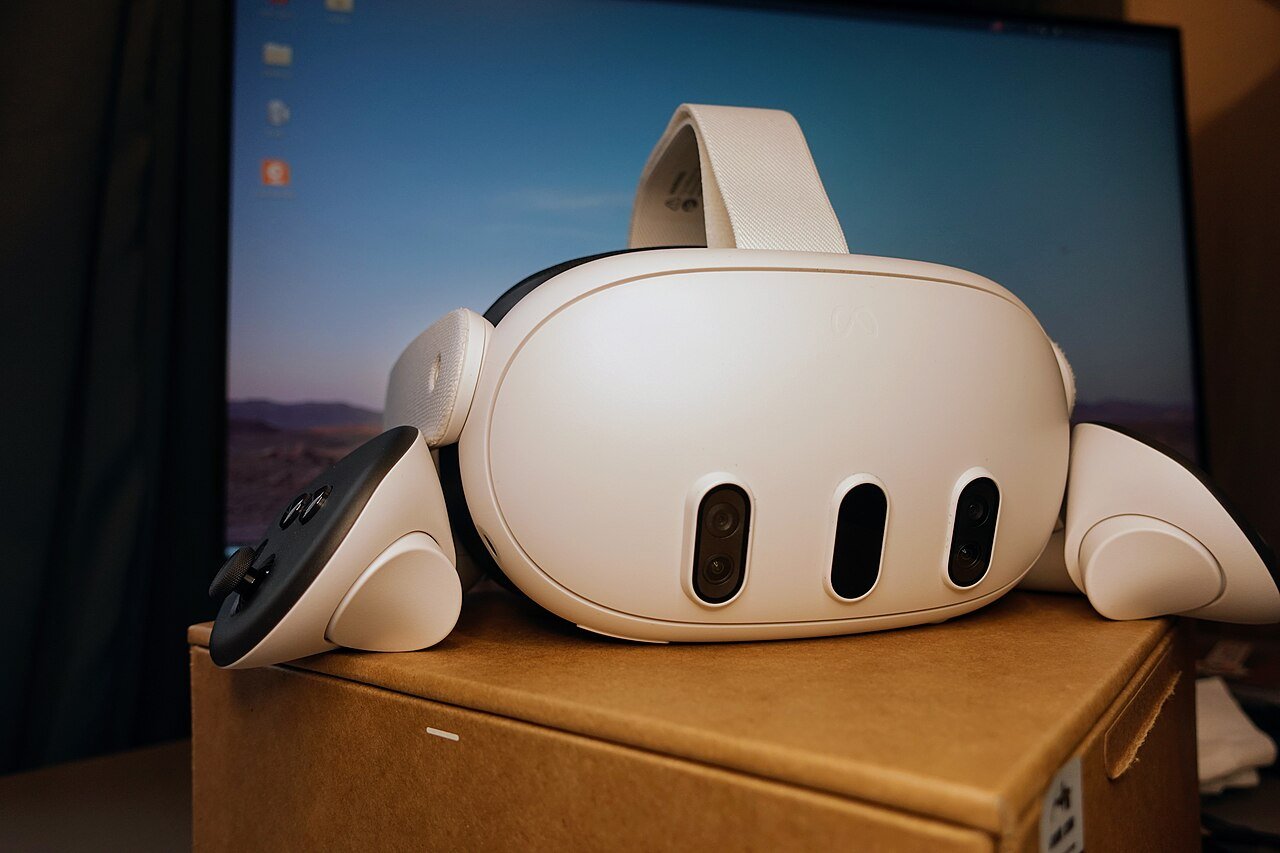
If you play PC VR games on your Quest through Steam Link, the new SteamVR 2.19.1 beta is worth a look. Valve says it brings sharper text, clearer colours and better detail to streamed VR. It also changes how Steam Link picks your resolution in the first place. So here’s what’s new, how to try it, and what to check if things go wrong.
And if you’d rather buy your VR games on the Meta Horizon Store, don’t forget my promo code VRCGUY at checkout. It’s a simple way to support the channel.
What is the SteamVR 2.19.1 beta?
SteamVR is the software on your PC that runs PC VR games. Steam Link is Valve’s free app that streams those games from your PC to a Quest over your home network. Valve launched Steam Link for Quest back in December 2023, so it’s been around a while now.
On 2 November, Valve pushed SteamVR 2.19.1 to its beta channel. According to Valve’s patch notes, most of the work is on streaming. In Valve’s words, the changes benefit “all streaming VR applications, the SteamVR interface, desktop streaming, third-party overlays, and the theater screen”.
It’s a beta, though. So it won’t turn up on your PC unless you choose to opt in.
The big change: a higher default resolution
Until now, Steam Link ran a GPU performance test to choose a recommended resolution for your PC. That meant two people with the same headset could end up with quite different settings.
The SteamVR 2.19.1 beta drops that test. Instead, it sets a fixed default render scale of 1.5. Valve says that targets about 1.4 times your headset’s panel resolution. As Gamer Headlines put it, the result is a higher, more consistent starting point for everyone.
There’s one catch worth knowing. If you’ve ever changed Steam Link’s render resolution or encoded video size by hand, Valve keeps your settings. So you won’t see the new defaults until you set those back to Auto.
Sharper colours, text and edges
The resolution bump isn’t the only change. Valve lists several other picture improvements for streaming:
- A better filter for shrinking colour detail before the image is compressed, so fine coloured details survive.
- Better brightness at the edges between strongly saturated colours.
- Sharper detail in your peripheral vision, outside the foveated area.
- Crisper text and menus across the SteamVR dashboard, overlays, the theatre screen and SteamVR Home.
Under the bonnet, Valve has also changed how the picture is put together. The new pipeline draws the sharp centre and the softer outer views straight from their source images. That cuts out an extra step where detail could get lost.
Valve’s own comparison shots show the difference in text and colour. PC Guide called it a “massive” improvement, especially for reading text. I’d wait for more players to report back before getting too excited, but it does look promising on paper.
Other fixes for Quest players
There’s a long list of smaller changes too. These are the ones that stood out for Quest owners:
- A fix for a possible cause of Error 17.
- Improved head motion prediction.
- Per-game refresh rate overrides, so you can set a different refresh rate for each game.
- A fix for the 72 Hz notification staying on screen in Battery Saver mode on Meta Quest.
- A new “Preferred Foveated Sharpness” setting for the SteamVR interface. You can pick a narrower, sharper area or a wider one.
- A new Ultra option for overlay render quality.
There are Linux changes as well. However, unless you run SteamVR on Linux, you can safely skip those. GamingOnLinux has the full details if you’re curious.
How to try the SteamVR 2.19.1 beta
Opting in only takes a minute. According to PC Guide, here’s how to do it on your PC:
- Open your Steam Library and find SteamVR.
- Right-click it and choose Properties.
- Go to Game Versions & Betas.
- Under Beta Participation, choose the SteamVR Beta Update.
Then, to see the before and after for yourself, go to Steam Link, then Advanced, then Stream Quality on your PC. Choose Default for the new picture, or Legacy for the old one. That’s a handy touch from Valve, because you can judge it with your own eyes rather than taking anyone’s word for it.
[AUTHOR’S TAKE: add a sentence or two of your own here, e.g. whether you ever stream PC VR games to your Quest, or what you’d tell followers who ask about Steam Link, or delete this paragraph before publishing]
Things to check before you switch
A higher render resolution means your graphics card has more work to do. If your PC is on the older side, keep an eye on smoothness after updating. If things stutter, Legacy mode or a lower manual setting is always there.
It also helps to know what Steam Link needs in the first place. According to Owl3D’s guide, which quotes Valve’s support page, the basics are:
- A Windows 10 or newer PC running Steam and SteamVR.
- At least an NVIDIA GTX 970 or AMD RX 570. Valve recommends an RTX 2070 or better and 16 GB of memory.
- A 5 GHz Wi-Fi network for the headset, ideally Wi-Fi 6 or 6E, with the PC wired to the router.
- Remote Play switched on in Steam’s settings.
Finally, remember it’s a beta. Valve asks people to report problems in its SteamVR Bug Report forum, not in the comments under the announcement.
Does this matter if you only play on Quest?
Not really. If you only play games installed on your Quest, nothing changes for you. The VR cricket games I cover, like iB Cricket and RealBat Cricket VR, run on the headset itself. You don’t need a PC for those.
But if you’ve also got a gaming PC, the SteamVR 2.19.1 beta makes the free, official route look better. If you’re curious about the other ways people get PC games onto a Quest, my post on the Venture Quest emulator covers the opposite direction. It’s also worth reading about Valve’s VR strategy, as Valve clearly still cares about streaming. That makes sense, since its own Steam Frame headset streams from a PC too.
And if you’re still on a Quest 2, Steam Link lists it as supported. Just bear in mind the dates in my Quest 2 end of support post.
Quick FAQ
Is SteamVR 2.19.1 out for everyone?
Not yet. It’s on the beta channel, so you have to opt in. Valve hasn’t said when it’ll reach the normal release.
Do I need to change anything in the headset?
No. The changes are in SteamVR on your PC. Just make sure any manual Steam Link settings are back on Auto if you want the new defaults.
Can I go back to the old picture?
Yes. Choose Legacy under Steam Link, Advanced, Stream Quality. You can also leave the beta in SteamVR’s properties.
What to watch next
I’ll be watching for when these changes reach the normal SteamVR release, and what Quest players make of them. For more Quest news and guides, head over to my Meta Quest hub. And if you’re still choosing a headset, my guide to the best VR headset for VR cricket is a good place to start.
Sources
- Valve on Steam: SteamVR Beta Updated – 2.19.1 (2 November 2026)
- PC Guide: Latest SteamVR beta massively improves image quality (3 November 2026)
- GamingOnLinux: SteamVR Beta 2.19.1 is a big upgrade for streaming (3 November 2026)
- Gamer Headlines: SteamVR 2.19.1 Beta Adds Sharper Streaming (3 November 2026)
- Owl3D: Steam Link on Meta Quest 3 setup guide (requirements quoted from Valve)
- Valve: Play Steam VR games on Meta Quest 2, 3, and Pro (December 2023)