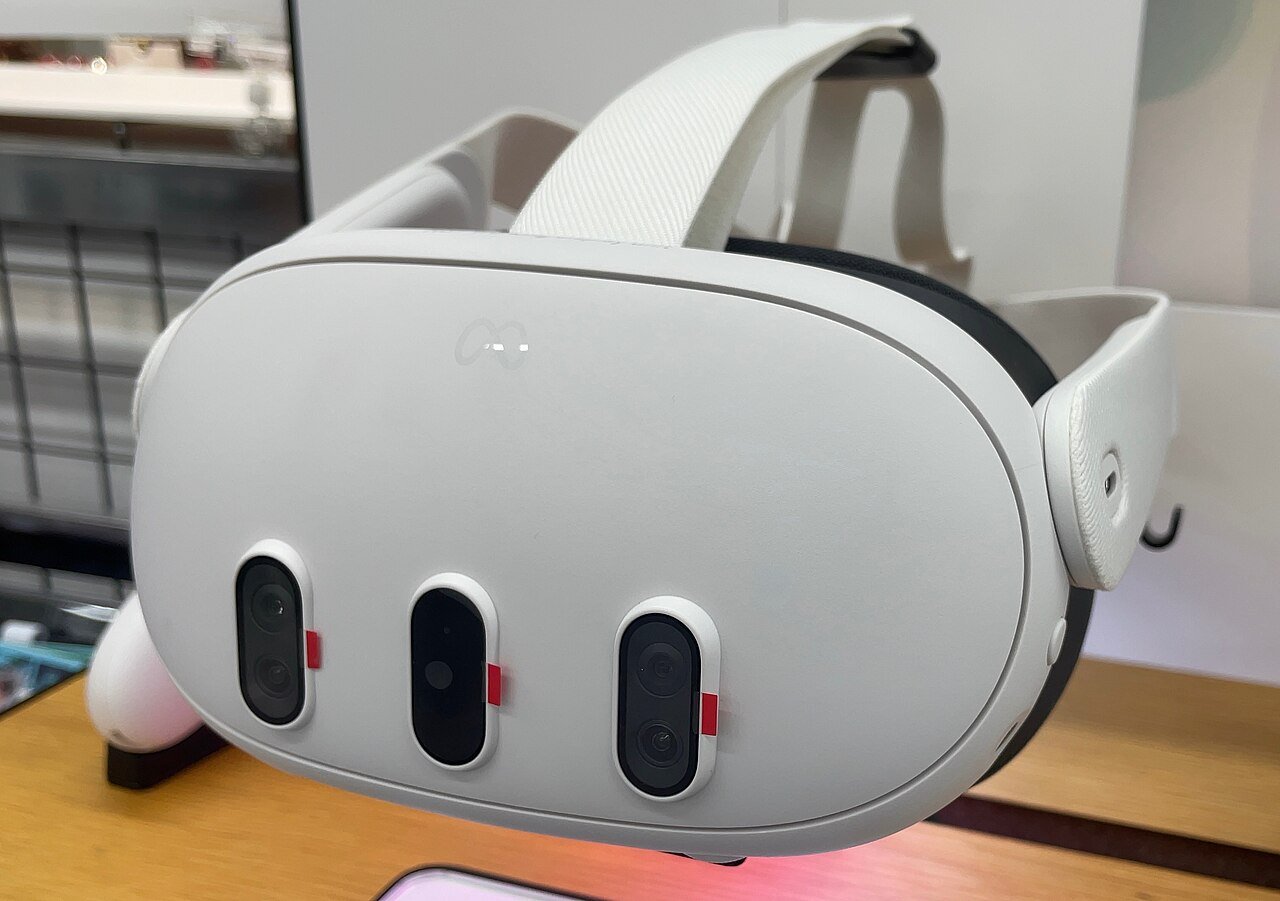
If you stream PC VR games to your Quest, Valve has just added a clever little trick. The new SteamVR 2.19.4 beta brings Steam Link chroma key support, so a game can let your real room show through parts of the picture. It’s the old green-screen idea, applied to VR. I haven’t tried it, so this is based on Valve’s own patch notes and reporting from VR.org. Here’s what it does, how to switch it on, and the big questions Valve hasn’t answered yet.
What is Steam Link chroma key?
Chroma key is the trick weather presenters use. You pick one colour, and anything drawn in that colour turns see-through. On TV, the green wall becomes a weather map. In this case, the colour becomes a window onto your room.
Valve calls the headset’s camera view Room View. It’s basically SteamVR’s name for passthrough, the feed from the cameras on the front of your Quest. So, with chroma key, a PC VR game can draw a flat colour anywhere it wants your room to appear. Then the stream swaps that colour for the camera picture.
Steam Link itself is Valve’s free app on the Meta Horizon Store. It streams games from your PC’s Steam library to your headset over Wi-Fi. If that’s new to you, my earlier post on the SteamVR 2.19.1 beta explains how Steam Link works and what changed with image quality this month.
What Valve’s 2.19.4 notes actually say
Valve posted the SteamVR 2.19.4 beta notes on 19 November. The chroma key part is short, so here it is in full. Under Steam Link for Meta Quest, Valve says streaming “now supports chroma key to allow Room View to be shown on VR content.”
It then adds that the settings sit “on the PC side in the Camera section”. There’s a mode switch between two options, called Protect Content and Key Content.
Only one of those is explained. Valve says Key Content “will allow any game to simply draw the key color to control Room View transparency.” What Protect Content does isn’t spelled out. As VR.org pointed out, Valve also doesn’t say which colour is the key, or which Quest models are covered.
The Steam Frame got it first
This didn’t appear out of nowhere. Valve’s own headset, the Steam Frame, got the same feature a few days earlier. The SteamOS 0.5.9 beta notes use almost exactly the same wording, under a heading called Camera Pass Through / Room View.
Before that, the SteamOS 0.5.8 beta let streamed PC VR games use passthrough in a different way. VR.org reported that games supporting OpenXR’s mixed reality blend mode could show the room, with X-Plane 12 as Valve’s example. Now Quest owners on Steam Link are getting the chroma key route too.
It fits a pattern. Valve keeps saying it’s committed to VR, as I covered in my piece on Valve’s VR strategy and the Steam Frame price. Bringing Frame features to Quest owners quickly is one practical sign of that.
Chroma key vs the blend mode: why it matters
The two methods ask very different things of a game. The OpenXR blend route needs the game to be built for mixed reality. It has to mark how see-through every pixel is, so only games designed that way qualify.
Chroma key is much simpler. A game just has to paint one colour where your room should go. VR.org makes the point that an older game, or a mod, can do that far more easily than rebuilding itself around mixed reality.
There is a catch, though. Anything in the scene that happens to be the key colour will also turn see-through. That’s the classic green-screen problem, like a presenter wearing a green tie. VR.org suggests Protect Content may be Valve’s answer to that, but Valve hasn’t said so.
Virtual Desktop has done this since 2023
To be fair to the competition, this isn’t brand new on Quest. Virtual Desktop, the paid streaming app many Quest owners use instead of Steam Link, added it years ago. MIXED’s rundown of Virtual Desktop 1.29 lists a “VR passthrough option in streaming tab with configurable chroma keying”.
So what’s new is that Valve’s free app now has an official version of the same idea. For people who only use Steam Link, that’s a genuine upgrade. For Virtual Desktop users, it’s more of a catch-up.
How to try Steam Link chroma key
You need a Quest, a Windows PC running SteamVR, and two beta channels switched on. These steps come from Valve’s notes and its SteamVR beta instructions.
- On your PC, open your Steam library, right-click SteamVR and choose Properties.
- Open the Game Versions & Betas tab and select the SteamVR beta.
- In your headset, open the application settings for Steam Link, find Release Channels and switch to the beta.
- Start streaming as normal, then look in the Camera section of the Steam Link settings on your PC.
- Pick between Protect Content and Key Content.
Then comes the awkward bit. You need a game that actually draws the key colour, and Valve hasn’t named one. So, for most players, there may be nothing to see straight away. This looks like a tool for developers and modders first.
If anything goes wrong, Valve’s Steam Link for Meta Quest FAQ is the place to start. You can also switch both channels back to the normal release.
What else is in SteamVR 2.19.4?
Chroma key is the headline, but the beta has other fixes for Quest streamers. According to Valve’s notes, it:
- Improves streaming quality and reliability on both NVIDIA and AMD graphics cards.
- Handles brief network hiccups better, including with Multi-Link Streaming.
- Fixes skybox textures, such as VRChat’s transition screens, sometimes looking wrong.
- Fixes the occasional session running at a reduced bitrate.
- Makes Steam Link use the faster graphics chip on laptops with two GPUs, unless Windows has a preference set.
- Fixes an audio crash after three hours of 2D streaming, and adds a network health check.
- Lets you turn off controller haptics per game, under VR Settings, Controllers, Manage Controller Bindings.
That laptop GPU fix may matter more to some people than chroma key. If your gaming laptop has been streaming badly, it’s worth a try.
What’s still unclear
Valve’s notes are brief, so plenty is still up in the air:
- The key colour: Valve hasn’t said which colour games should draw.
- Protect Content: there’s no explanation of what this mode does.
- Which Quests: Steam Link supports Quest 2, 3, 3S and Pro, but the notes don’t say which ones get chroma key.
- Supported games: Valve hasn’t named a single game that uses it.
- When it leaves beta: there’s no date for a full SteamVR release.
What it means for Quest owners
For now, this is a small change with a lot of potential. If developers and modders pick it up, older PC VR games could gain simple mixed reality bits without a big rewrite. Think a cockpit with your real desk visible, or a window onto your room in a menu.
For cricket fans, there’s no change yet. iB Cricket has a PC VR version on Steam as well as Quest, but nothing suggests it uses this feature. If you mainly play cricket on the headset itself, my guide to iB Cricket on Meta Quest 3 is more useful today. I’ve also just written up Cricket Chase VR, a new budget batting game on the Meta Store.
If you’d rather stream your whole Windows desktop instead, Microsoft’s Mixed Reality Link over USB is another option. And if you want a real PC VR example, my guide to playing H3VR on Quest 3 walks through what you need. For more headset guides, my Meta Quest hub has the lot.
Steam Link chroma key FAQ
Is Steam Link chroma key free?
Yes. Steam Link and SteamVR are both free. You just need to opt into the beta versions for now.
Does it work on Quest 3?
The feature is listed under Steam Link for Meta Quest, but Valve doesn’t name specific models. Steam Link itself supports Quest 2, 3, 3S and Pro.
Do I need a special game?
Yes. In Key Content mode, the game has to draw the key colour where your room should show. Valve hasn’t listed any games that do this yet.
Buying a paid game on the Meta Store? Use my creator code at checkout on meta.com for a discount on eligible games.
VRCGUY
My link should apply the discount for you. If it doesn’t, enter VRCGUY at checkout. It’s for paid games only and won’t stack with other offers. (It’s my code, so Meta pays me a small fee.) How to use VRCGUY
Sources
- Valve: SteamVR Beta Updated – 2.19.4 (19 November 2026 patch notes)
- Valve: SteamOS 0.5.9 Beta for Steam Frame (same chroma key feature on Steam Frame)
- Steam Support: how to opt into the SteamVR beta
- Steam Support: Steam Link for Meta Quest FAQ
- Steam Link on the Meta Horizon Store (supported headsets)
- VR.org: Steam Link on Quest gets chroma key passthrough (analysis of the 2.19.4 notes)
- VR.org: Steam Frame’s SteamOS 0.5.8 beta passthrough (OpenXR blend mode, X-Plane 12)
- MIXED: Virtual Desktop 1.29 update (chroma keying in Virtual Desktop)
- GamingOnLinux: SteamVR beta 2.19.4 (patch note summary)
Featured image: Meta Quest 3 by Kyu3a, Wikimedia Commons, licensed under CC BY-SA 4.0.
